The Timetabling Nightmare
It's 3 weeks before the semester starts. You pull out your timetabling spreadsheet (or paper, or outdated software):
Dr. Patel can't teach Tuesday mornings (she's at her hospital job).
Room 301 is only available Tue/Wed/Thu.
Batch B2 has 40 kids; only 2 rooms fit that many.
Instructor Singh teaches both Grade 10 and Grade 12; his schedule can't overlap.
Physics practicals are 2 hours; regular lectures are 1 hour. Same instructor? Different slots needed.
You run 47 constraints. You move Class A to Tuesday; now Class B has no room. You fix Class B; Dr. Patel is double-booked.
Result: It takes 2 weeks, emails to 20 people, 3 revisions after the semester starts, and someone's always unhappy.
Why Manual Timetabling Fails at Scale
No conflict detection: You catch conflicts on Day 1.
No instructor availability logic: Dr. Patel's Tuesday constraint is in her head, not the system.
No room optimization: Rooms double-booked or sitting empty.
No history: You rebuild the timetable from scratch every semester.
No workflow: Principal changes her mind 3x. You redo the whole thing.
LearnNet's Timetabling System
One-step setup.
Define your institution structure (campuses, grades, sections, instructors, rooms). Assign instructors to classes. Add constraints (Dr. Patel unavailable Tue-AM, Room 301 only Tue/Wed/Thu).
Automatic conflict detection.
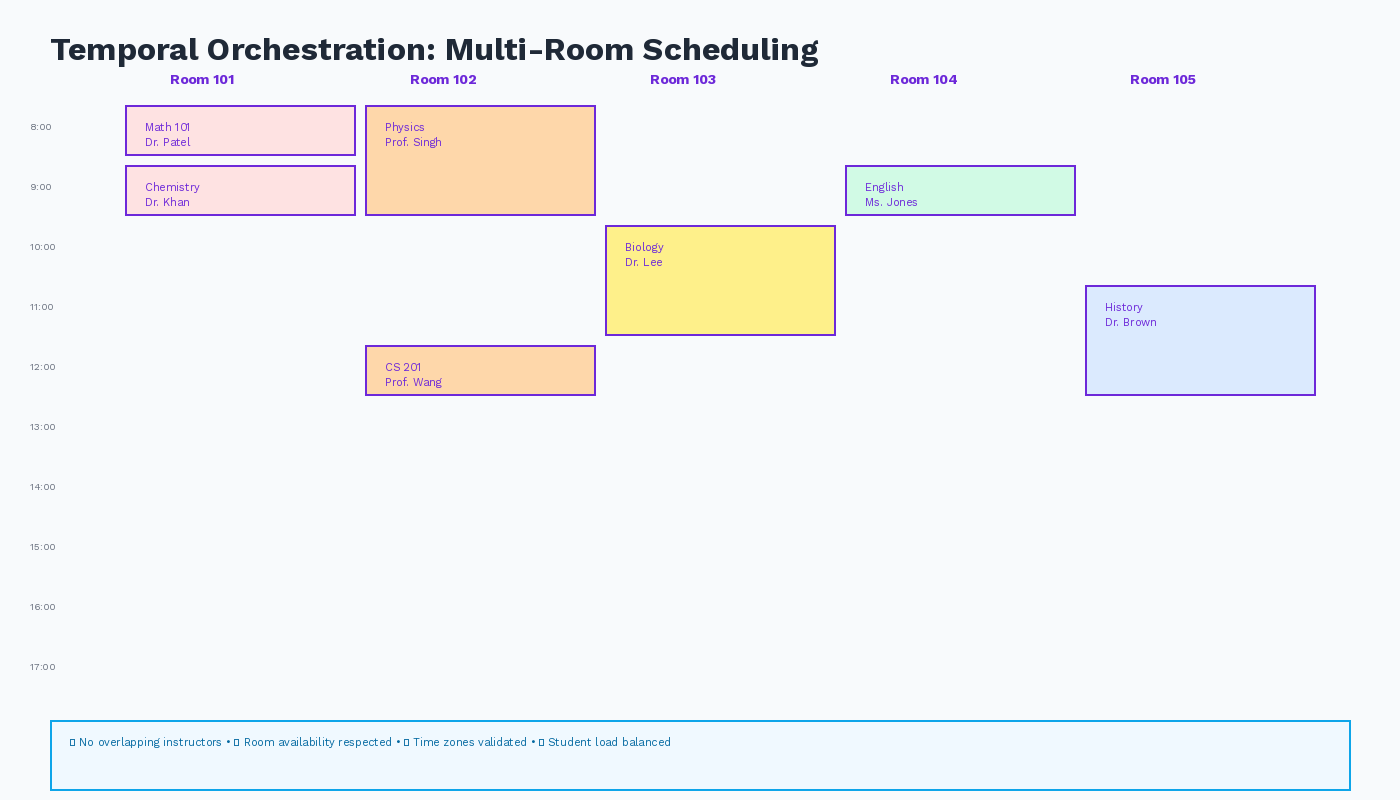
Overlap two classes or an instructor? The system flags it instantly. You can't save a conflicting timetable.
Draft → Submit → Approve workflow.
Draft: Coordinator builds the timetable, runs validation.
Submit: Submitted for admin approval.
Approve: Campus admin reviews and approves (or rejects with feedback).
Locked: Once approved, timetable is locked and published to students/instructors.
Changes mid-semester? Re-draft, submit, approve. No silent chaos.
Batch slot management.
Define "Batch B2 has 3 sections (B2-A, B2-B, B2-C)." Assign instructors. LearnNet ensures:
No instructor teaches the same course to two sections at the same time.
All sections get timetabled within your constraints.
Instructors see their full teaching load upfront.
Real-time instructor view.
Every instructor sees their timetable the moment it's approved. No email, no spreadsheet. Their availability syncs with classroom operations (attendance, grading, office hours).
Automated attendance.
Timetable published → students know their schedule. Class starts → instructor marks attendance. The app knows who should be there based on the timetable.
Impact by the Numbers
Setup time: 2 weeks → 2 days
Revisions: 3–5 → 0–1 (constraints caught upfront)
Conflict discovery: Day 1 of semester → never (validation at build-time)
Admin overhead: 10+ emails to instructors → automatic sync
Ad-hoc changes: Manual re-timetabling → one-click draft-revise-approve
Real Workflow (Example)
Friday, Nov 1 (Final timetable due Dec 15)
Coordinator logs in, starts the timetable builder:
Imports last year's timetable (copy-paste starting point).
Updates instructors, adds 2 new teachers, removes 1 retiring teacher.
Adds constraints: "Dr. Patel unavailable Tue-AM," "Room 301 only Tue/Wed/Thu."
Runs validation: 0 conflicts.
Submits to campus admin for review.
Monday, Nov 4
Admin approves (or asks for 1 change). Timetable locks. All students and instructors see their schedules within 2 hours.
Compare to Excel: Coordinator builds manually, emails Dr. Patel, waits 2 days, discovers Dr. Patel's constraint wasn't in the original spreadsheet, rebuilds everything, finds 3 other conflicts, fixes them, emails principal, waits 3 days, discovers Room 301 was never assigned, rebuilds again... (2 weeks, lots of email, multiple mistakes).
CTA: Stop rebuilding your timetable every semester. LearnNet catches conflicts before they start. Schedule a timetabling demo